Powered by Blogger.

Labels

Meet The Author

Experience

Blogroll

Labels

Featured 1

Curabitur et lectus vitae purus tincidunt laoreet sit amet ac ipsum. Proin tincidunt mattis nisi a scelerisque. Aliquam placerat dapibus eros non ullamcorper. Integer interdum ullamcorper venenatis. Pellentesque habitant morbi tristique senectus et netus et malesuada fames ac turpis egestas.

Featured 2

Curabitur et lectus vitae purus tincidunt laoreet sit amet ac ipsum. Proin tincidunt mattis nisi a scelerisque. Aliquam placerat dapibus eros non ullamcorper. Integer interdum ullamcorper venenatis. Pellentesque habitant morbi tristique senectus et netus et malesuada fames ac turpis egestas.

Featured 3

Curabitur et lectus vitae purus tincidunt laoreet sit amet ac ipsum. Proin tincidunt mattis nisi a scelerisque. Aliquam placerat dapibus eros non ullamcorper. Integer interdum ullamcorper venenatis. Pellentesque habitant morbi tristique senectus et netus et malesuada fames ac turpis egestas.

Featured 4

Curabitur et lectus vitae purus tincidunt laoreet sit amet ac ipsum. Proin tincidunt mattis nisi a scelerisque. Aliquam placerat dapibus eros non ullamcorper. Integer interdum ullamcorper venenatis. Pellentesque habitant morbi tristique senectus et netus et malesuada fames ac turpis egestas.

Featured 5

Curabitur et lectus vitae purus tincidunt laoreet sit amet ac ipsum. Proin tincidunt mattis nisi a scelerisque. Aliquam placerat dapibus eros non ullamcorper. Integer interdum ullamcorper venenatis. Pellentesque habitant morbi tristique senectus et netus et malesuada fames ac turpis egestas.

Showing posts with label Windows 7 Themes. Show all posts

Sunday, May 13, 2012

Leo's Revenge


How to install
1. Install Universal Theme Patcher, make sure that UAC must be turned off
2. Extract the content into C:\Windows\Resources\Themes
3. Take Ownership of explorerframe.dll in System32, explorer.exe in Windows folder and copy the appropriate explorerframe.dll, explorer.exe to replace the original!. Make sure to make a backup of the original in case of instability.
4. Restart Windows & then select this theme in Personalize Menu


Vienna


wall [link]
XDeskCover [link]
For CAD skin [link]

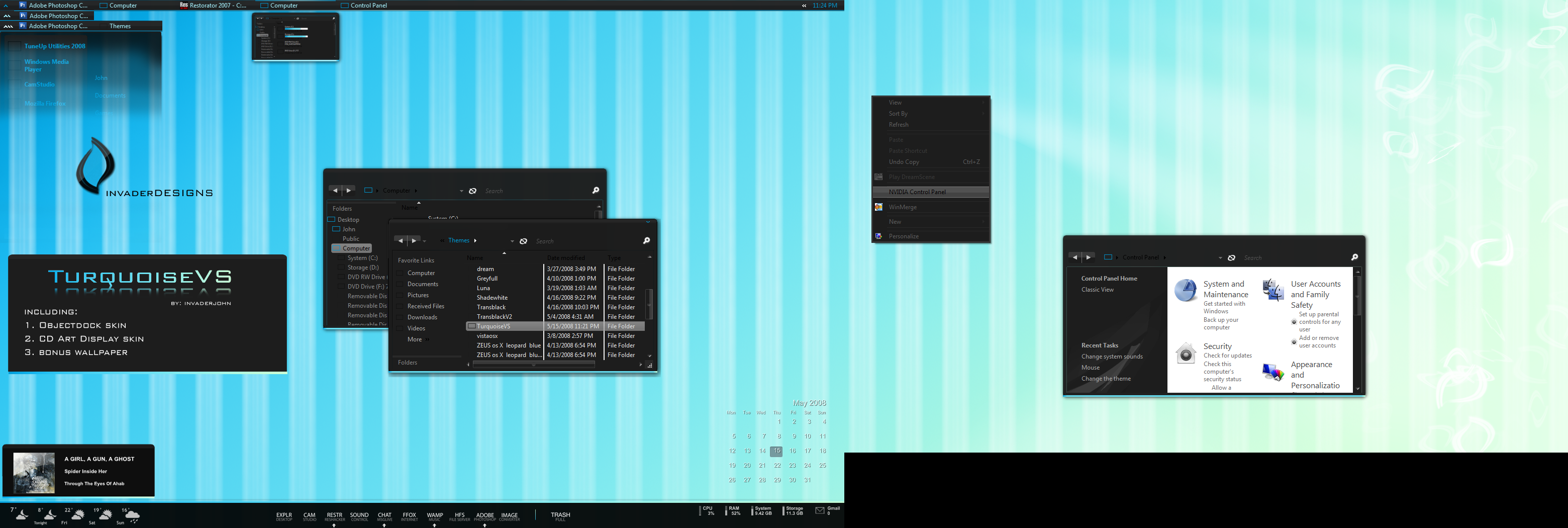
TurquoiseVS


new visualstyle for vista

TurquoiseVS

this version isnt rly finished yet
well its all done
but there were some more stuff i should do on it
but everyone has asked for it so much so thought i could release it like this right now


To get the best view of this
go to
right click on desktop choose personalize>window color and appearance>open classic apparance for more colors bla bla

hit the visualstyle and hit advanced then choose menu
and change the menu color to something lighter
like white or whatever u want.. light blue maybe
and hit apply

the go back to window color and apparance (where u choose colors of aero) and hit graphite with like 70-80% intensity

and it will be good ^^


Gaia10


Gaia10 Visual Style for Windows 7

Maverick for Win7


1. Install the theme?
Copy the content of Theme folder in "C:\Windows\Resources\Themes\" (Asuming that you're Windows 7 is installed on partition C)

2. Change the start orb?
Use Windows 7 Start Button Changer
Launch Windows 7 Start Button Changer and choose the BMP from the "Resources/Start Orb - Ubuntu" folder and you're done!

3. Remove the blured edges of the windows?
Use Windows 7 Aero Blur Tweaker from the "Tools" folder to remove the windows blur.


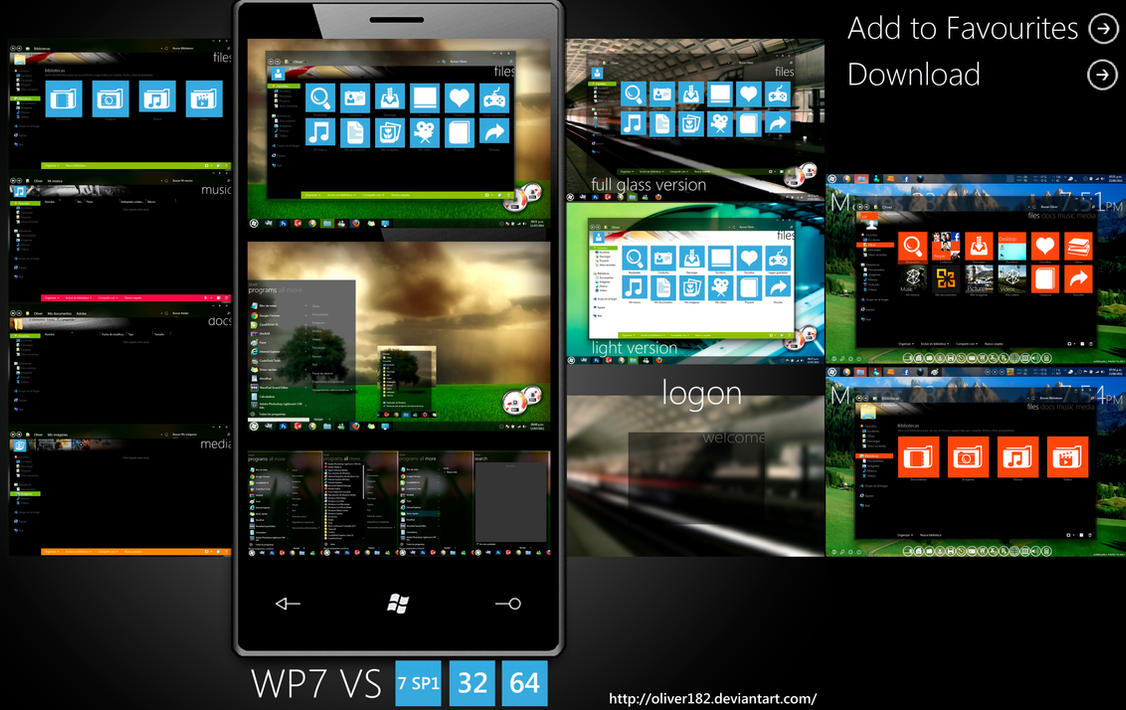
WP7 Mango VS


Aero & metro in the style of WP7

Hope you like it


Thursday, May 10, 2012

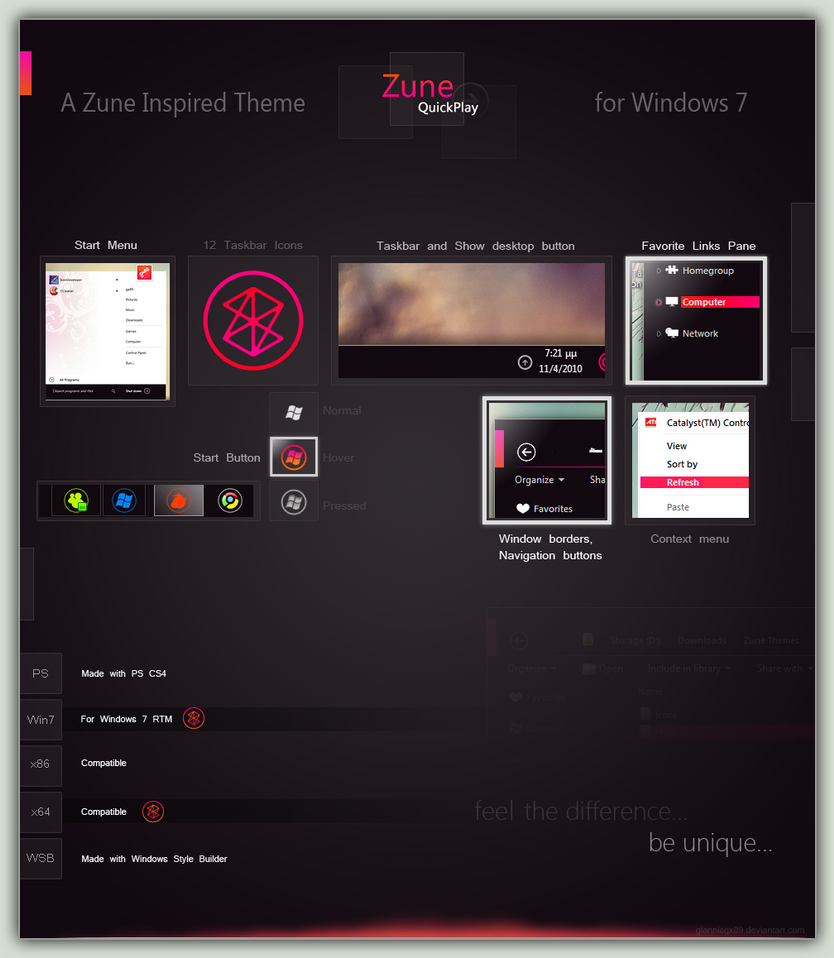
Zune Collection(Black Madness) for Win7


The theme works with
Aero
Basic
x86 Systems (make a back up before you do any system file replacing)
x64 Systems (make a back up before you do any system file replacing)


Click Me To Download

Zune Collection (White Attract) for Win7


The theme works with
Aero
Basic
x86 Systems (make a back up before you do any system file replacing)
x64 Systems (make a back up before you do any system file replacing)


Click Me To Download

Saturday, May 05, 2012

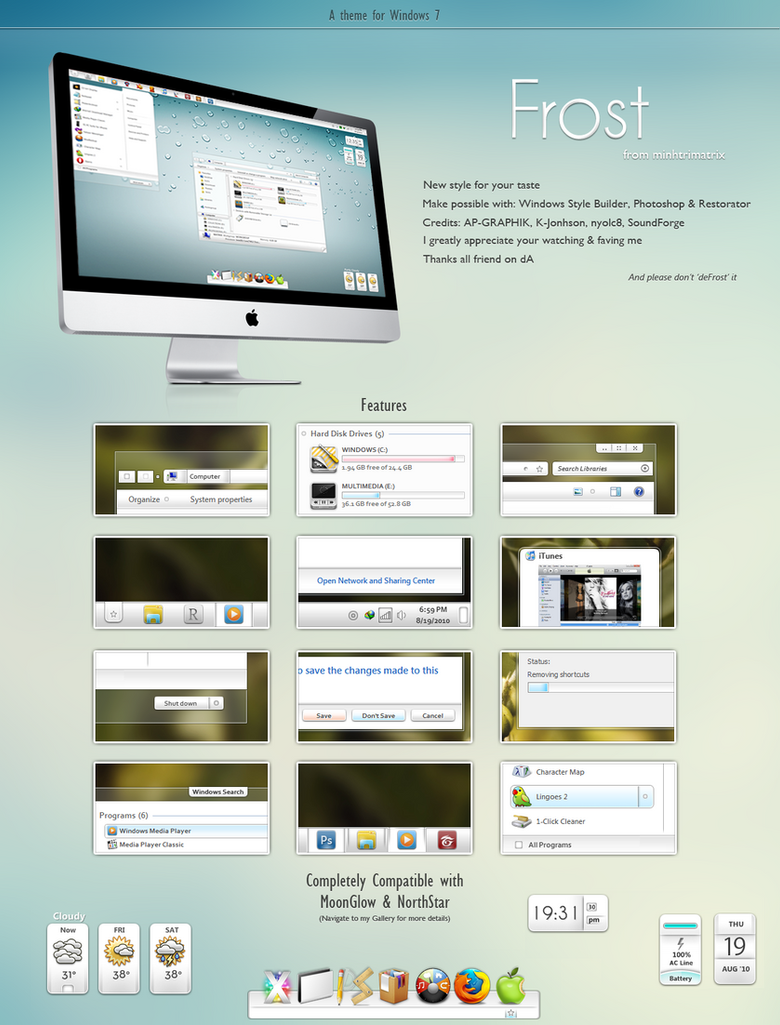
Frost Aero


How to install

1. Install Universal Theme Patcher, make sure that UAC must be turned off
2. Extract content (*.theme & Frost folder) into C:\Windows\Resources\Themes
3. Take Ownership of explorerframe.dll in System32, explorer.exe in Windows folder and copy the appropriate explorerframe.dll, explorer.exe to replace the original!. Make sure to make a backup of the original in case of instability.
4. Restart Windows & then select this theme in Personalize Menu

Click Me To Download


Recommended:MoonGlow (Rainmeter skin)

Click Me To Download


NorthStar (Dock skin)

Click Me To Download


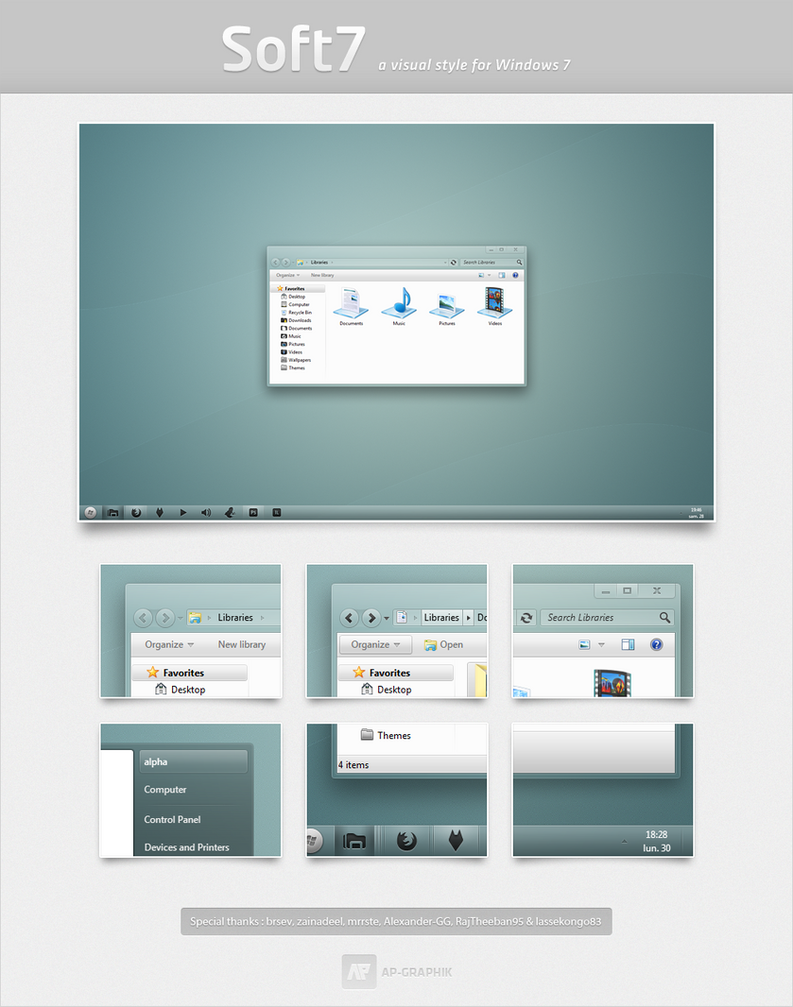
Soft7 2.0


FINAL

2 System files included (SP1 compatible)
4 Wallpapers included

32bits and 64bits compatible
Taskbar on Bottom, Top and Left compatible
Window Color available (It's supposed to be without. Apply the theme again if it appears blue. Corners may have problems if you use it !)
________________________________________

INSTALL :


1) FIRST, DOWNLOAD AND RUN THIS Universal Theme Patcher IN ADMINISTRATOR MODE (right-clic > "Run as administrator"), UAC must be turned off
After patch, restart computer to take effect.

2) extract content ("Soft7 2.0.theme" & "Soft7 2.0" folder) into C:\Windows\Resources\Themes
and double-click on Soft7 2.0.theme
Then restart Windows in order that everything take effect ! (or only the explorer.exe if you know how to do it)

To change the navigation buttons you have to change your ExplorerFrame.dll :
Windows Theme Installer by Kishan-Bagaria
(Works only for the explorerframe.dll in "System32", so perfect for Windows 7 32bits. However, for Windows 7 64bits you'll also have to change the second explorerframe.dll (32bits) manually in the folder written below)


For 32bits Windows 7 :
Explorerframe.dll 32bits > "C:WindowsSystem32"

For 64bits Windows 7 :
Explorerframe.dll 64bits > "C:WindowsSystem32"
Explorerframe.dll 32bits > "C:WindowsSysWOW64"

YES, these are the right folders ! 64/32 and 32/64


Click Me To Download

Thursday, May 03, 2012

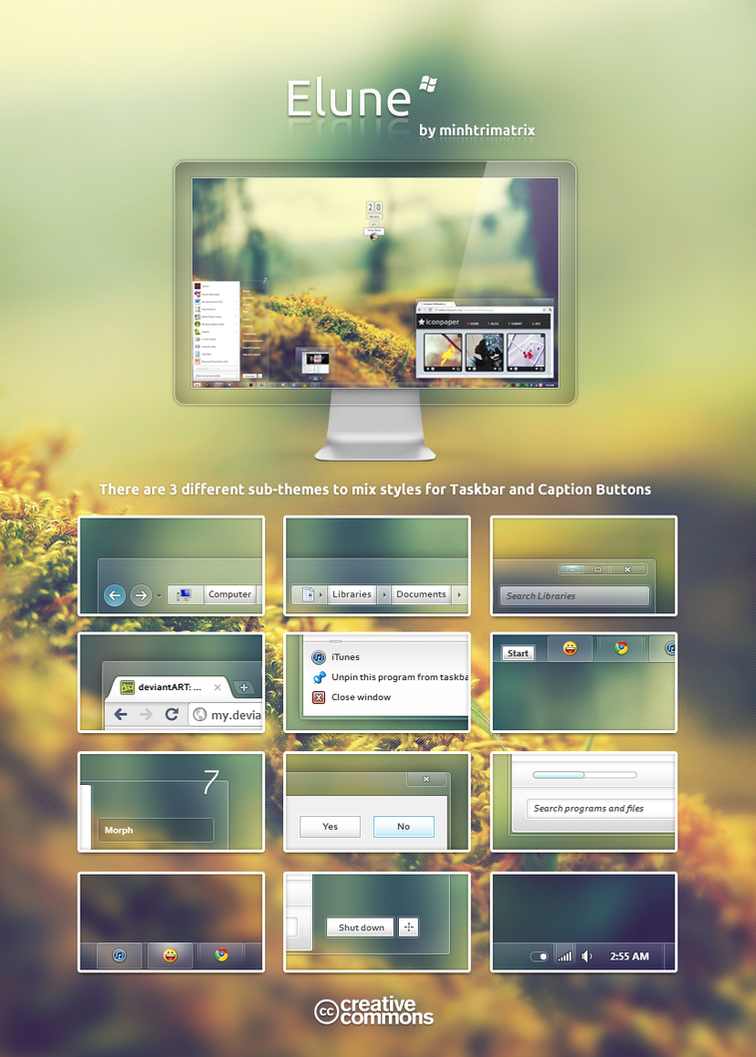
Elune


[Note]
I didn't include explorer.exe because I updated my computer to Windows 7 SP1.
You can use Restorator to change yours by replacing BMP number 6801,6805 & 6809, so do explorerframe.dll
[How to install]
1. Install Universal Theme Patcher, re-patch again if you updated to SP1.
2. Copy everything in themes folder (Elune folder, Elune 1(Bottom), Elune 1 (Top)...) into C:\Windows\Resources\Themes
3. Take Ownership, rename the orignal to back up and replace modified explorerframe.dll in System32 folder.
4. Restart Windows & then select this theme in Personalize Menu

Click Me To Download

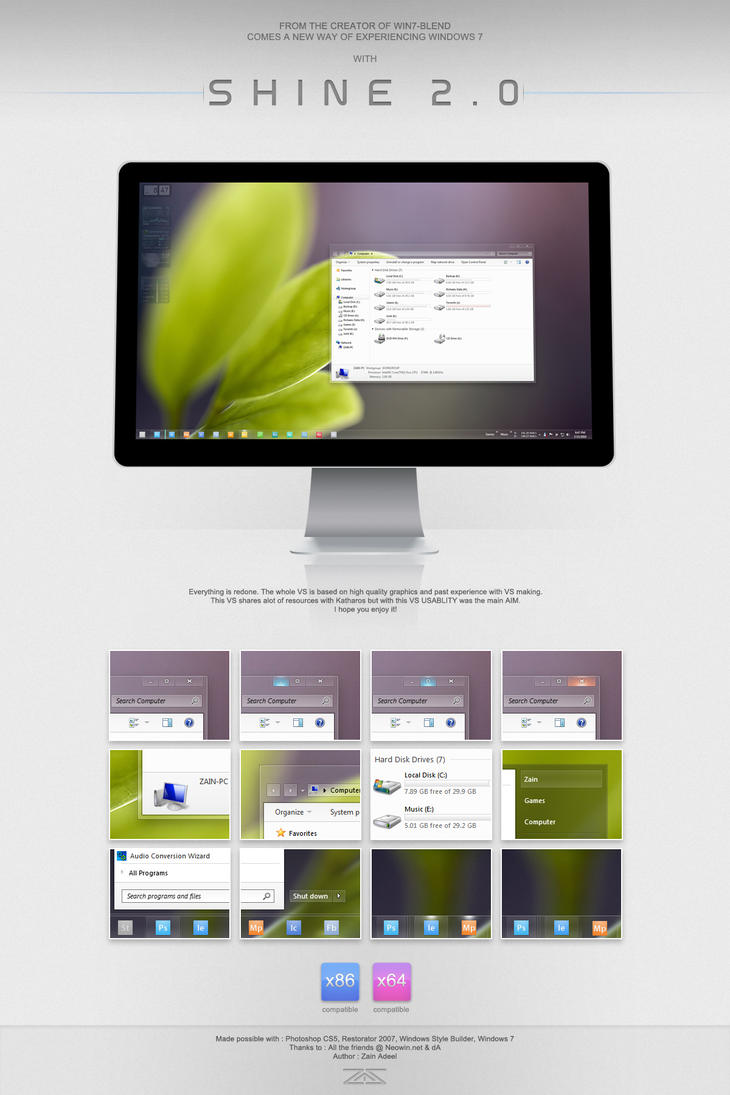
Shine 2.0 for Windows 7


Instructions:

1. Download Universal Theme Patcher. Run in it Administrative mode (right-click > "Run as administrator"),

UAC must be turned off.
After patch, restart the computer to take effect.

2. Select the theme according to where you place your superbar.

3. Extract contents (Win7-Shine 2.0.theme & Win7-Shine 2.0 folder) into C:\Windows\Resources\Themes
and double-click on Win7-Shine 2.0.theme
Then restart to make sure everything works properly.

5. Take ownership of explorerframe.dll in System32 folder and copy the appropreiate explorerframe.dll replacing the original!. Make sure to make a backup of the original in case of instability. (i dont know how to take permission manually, but i search for a software on google)

6. Restart computer and you are done

ENJOY!!!!!!!!!!!!!!!!!!


Click Me To Download